Using the application
The 1.1 version features a import/export mechanism for user’s courses in the Q&A format via an Internet browser. We are developing a new version that will probably include synchronization of the learning process with supermemo.net.
Unfortunately, we do not plan to add the feature to import full courses in the smpak format on a PC due to software limitations.
To switch this information off, click 'Settings' in the main screen, and choose 'Options'. In 'Options' switch off 'Information on repetitions'. Starting from the 1.1 version it is possible to switch off the information on repetitions in the information window itself.
No. Information on repetitions is displayed only for exercises of the SuperMemo type. It is not displayed for presentation pages or one-time exercises (one-time exercise is completed and assessed, but it is not included in repetitions).
This button has been added to the 1.1 version of the application. When you click on it, the application checks which courses you have already bought but have not been downloaded yet and activates the ‘Download course’ status for them. This option is useful in case there are problems with downloading a course that has already been paid for. If nothing changes in the view of a selected course upon clicking on this button, this means that the course has not been bought by the user.
Yes, it is possible in the 1.1 version of the application.
The Landscape mode while learning is perfect for presenting the material, which is why the interface is limited to the minimum. We are planning to try and change it in future, e.g. by adding semi-transparent buttons. For the time being, in order to see the full interface, you have to be in the Portrait mode.
No. The features of the device do not allow to have different volumes for course recordings and music from iPod.
When you remove the last exercise of a chapter, the application changes the type of that unit from chapter to presentation (the content is still there). If you check one level up, you should find a presentation page with the same title and contents as that chapter.
No, it is not a bug. Copy&paste is disabled for chapters (but you can still use drag&drop). In addition, once a type of chapter for an exercise is set, it cannot be changed.
Unfortunately not. You have to go to the Course catalogue again and re-download your chosen course. It is important to remember, however, that once it has been paid for, the course is assigned to your user account and can be downloaded multiple times without additional payments.
No. Once a course is purchased, it is assigned to the user App Store account. To download it again, go to the Course catalogue, find the course you are interested in and click “Buy”. A window will pop up saying that the course has already been purchased and can be re-downloaded for free (the same as it is with other applications bought at the App Store).
Version 1.1 includes a button ‘Already bought’. When you click on it, the application will check which courses have already been bought by the user but have not been downloaded yet and activates the ‘Download course’ button for them. This option is useful in case there are problems with downloading a course that has already been paid for.
The application has a time limit for connecting with App Store. When the connection is not started in this time limit, this notice is displayed and the user can only see free courses. The application still tries to start a connection with App Store and if it succeeds, the list of courses is refreshed to contain the paid courses as well, and it is safe to buy them.
It is due to the settings of the Safari for iPhone, used by the SuperMemo application. To see the contents of a box, you have to touch it with two fingers and drag it in the direction needed.

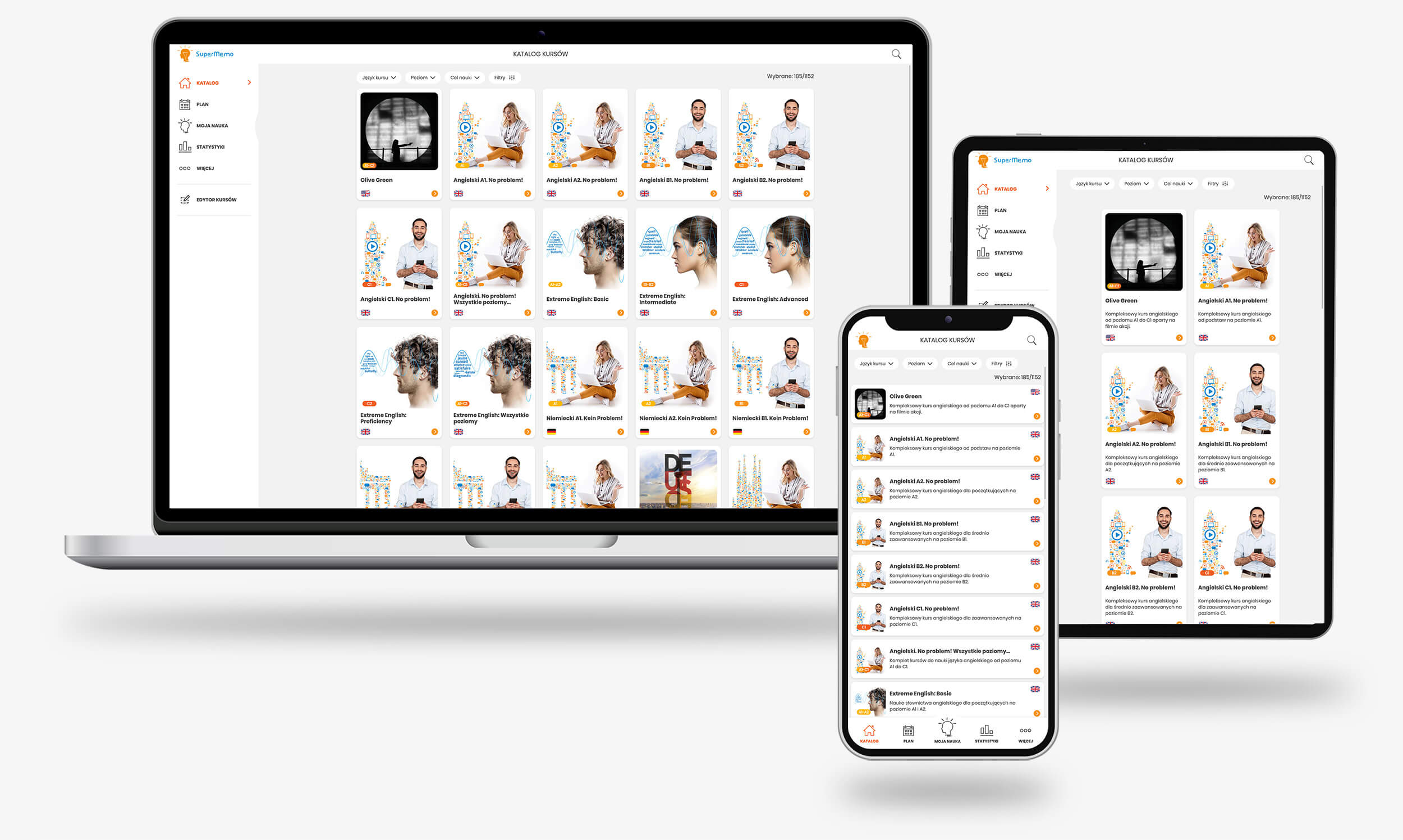
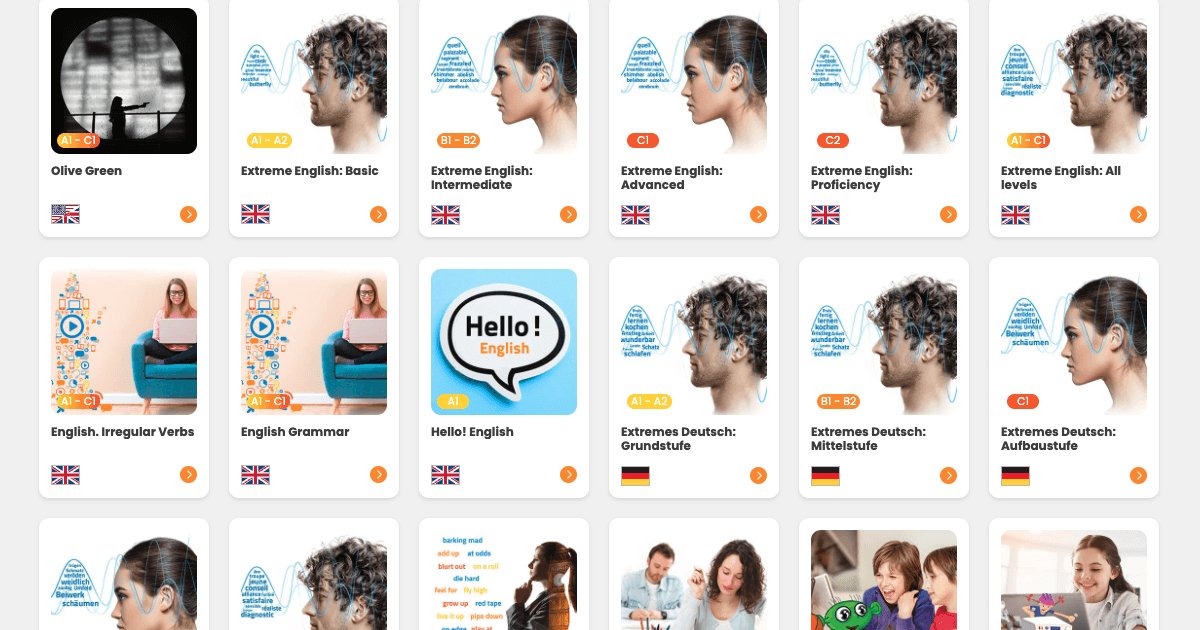
The SuperMemo application automatically adjusts its language settings to the interface language chosen by the user. The All button shows courses in all the available language versions. The Suggested button shows only the courses available in the language used by the SuperMemo application (the language of instructions). Additionally, the monolingual courses (i.e. those where the language of the instructions is identical with the one studied, for example an English course in English) are also shown.
Importing Q&A courses
It consists in uploading the file that has been previously prepared on the computer to the iPhone. It is required that the iPhone is connected to the same WiFi Network as the computer from which the file will be uploaded.
First, by choosing the appropriate options on the iPhone a temporary server is run. A user is given an IP address that has to be entered in the Internet browser on the computer from which the file will be downloaded.
NOTICE: You have to enter exactly the same address that is displayed on the iPhone, so if an address like this http://10.0.2.1:8080 is displayed, exactly these signs have to be entered in the browser address field (address field is the field where you enter e.g. "http://www.supermemo.net").
After entering this address and pressing ENTER, the browser will connect with the iPhone and make the file import/export form available. This file is sent to the iPhone that processes it and saves in the database as a user’s course.
The file should be a text file with the course definition in the Q&A format used by SuperMemo: Data formats and exchange. The file extension does not have to be .txt, although this format is recommended. The file should be saved by using the UTF-8 encoding.
In short: Let’s see an example:
File: Capitals.txt
--- File contents ---
Q: What city is the capital of Poland? A: Warszawa Q: What city is the capital of Germany? A: Berlin
--- End of file ---
The Q&A format defines three tags: "Q:", "A:" and empty line tag (empty line between exercises). The "Q:" tag defines the question beginning. The "A:" tag defines the answer beginning. The empty line defines the end of the exercise definition (i.e. exercises are separated with empty lines).
The end of a given tag is defined by the line end tag.
Yes, you can. This will be interpreted as multiple question or answer lines (still displayed In one exercise).
No, SuperMemo for iPhone does not support this format.
Yes, you can. You can even interlace the "Q:" and "A:" tags if more than one tag has been defined in one exercise.
Yes, you can.
Yes, you can define such an "incomplete" exercise.
The exercise name is created from the first 12 letters in the question section. If the question is sorter, fewer letters will be used. If the question is longer, the name will include suspension points "...".
Yes, they will, but it is not a problem for the application.
First you should prepare a file including definitions for the new exercises. The file does not have to (though it can, still it is not recommended) include definitions of the already existing exercises. While importing (in the browser window) you should choose this file and name the course with the name of the course that has to be enlarged.
A new set of exercises will be added to the course. The learning process data for the existing exercises will not be lost. With this mechanism it is possible to add a few new exercises easily and quickly, even to a course with a large number of pages without losing the learning process data.
Yes, you can. If the content of the question is defined correctly, e.g. as a gap in a text, the exercise will be displayed.
Exercise (multiple choice): ("A:" tag is not used in this case)
Q: The capital of Poland is <radio display="block" orientation="vertical"> <option> Kraków </option> <option correct="true"> Warszawa </option> </radio>
The application expects a file in the UTF8 encoding. Other types of encoding may cause errors in the course.
In order to improve the course clarity, while importing it the application groups exercises into chapters of 100 pages. These chapters are pages excluded from the learning process, so it is not possible to edit them in the 'New Exercise' menu and they are not scheduled for learning. The chapter name indicated the exercise numbers (according to the order indicated in the file with the course definition) that it includes.
In case of an update only of answer sections to given exercises, you should prepare a file including definitions for the exercises that should have updated answer sections.
The file does not have to (though it can, still it is not recommended) include definitions of the already existing exercises that do not have to be changed. While importing (in the browser window) you should choose this file and name the course with the name of the course that has to be updated. However, in this case it is very important not to change the question sections for the exercises that will have the answer section updated. This is because while importing the application downloads all exercises from a given course that have existed in the database.
Each time the application processes an exercise it checks if the already downloaded and existing exercises do not include an exercise of the SAME QUESTION SECTION. If they do, this exercise’s answer section is updated; learning process data for this exercise is not changed. If they don’t, it is simply added to the database as a new one.
Therefore, you should remember that any change in the question will result in recognising this exercise as NEW. Therefore, if you want to change the question section contents, without losing the learning process data and adding the exercise as new, you should use the exercise editor in the SuperMemo for iPhone application.
It is not possible. In order to remove unnecessary exercises from the course you should go to the ‘New Exercise’ menu in the SuperMemo for iPhone application. Optionally, you can also export the course, download it to your computer and remove unnecessary exercises, and then upload it to the iPhone with a new name. However, you should remember that in the second option information on the learning process will not be saved.
No, it is not possible. You can do only ONE operation at a time. Otherwise problems may appear.
If such problems appear, it is recommended to restart the server (by escaping the server window and going to the 'New Exercise' menu and entering again). Then in the browser click the address field to make sure that the address there is the same as in the iPhone (e.g. "http://10.0.2.2:8080") and press ENTER in order to connect to the server again.
IT IS NOT RECOMMENDED to use the 'REFRESH' button, as it may cause some data to be sent again to the iPhone, which may result in downloading the same course again.
In case of further problems, you can restart both the application and the browser.